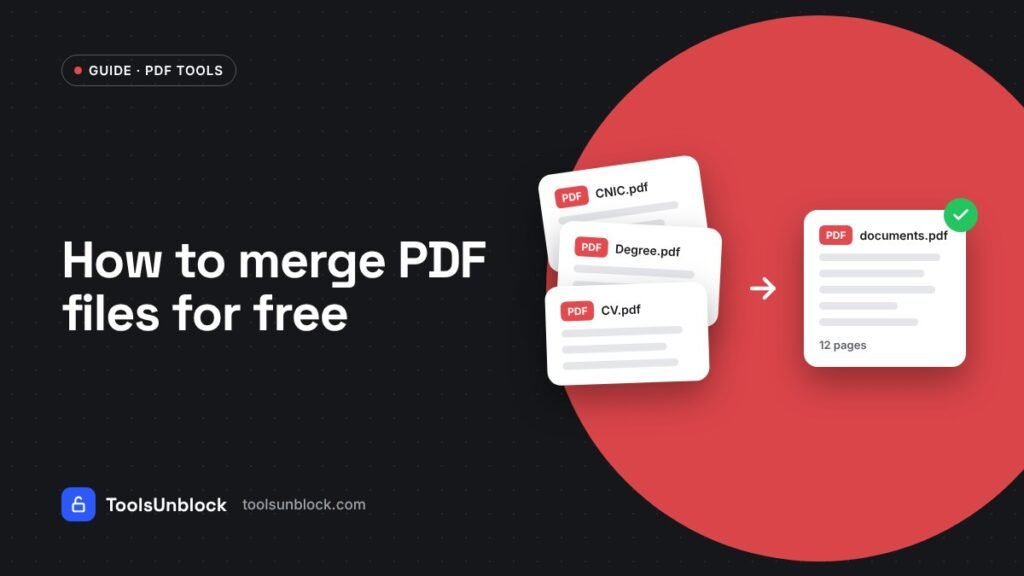
Universities, banks, visa offices and employers often ask for one PDF – but your documents are usually spread across several files: a CNIC scan, a degree, a bank statement, a CV. Merging them takes less than a minute and doesn’t need any software.
Merge PDFs in 4 steps
- Open the Merge PDF tool.
- Drop all your PDF files into the box, or tap Choose PDF files.
- Use the ↑ and ↓ arrows to put them in the right order. The first file in the list becomes the first pages of the new PDF.
- Give the file a clear name (for example Ali-Khan-documents) and press Merge PDF.
The files are joined inside your browser, so they never leave your device. That matters when your documents contain ID numbers or bank details.
On a phone
The tool works the same way on Android and iPhone. Tap Choose PDF files and pick the files from your Files app, Downloads or Google Drive. After merging, the new PDF is saved to your Downloads folder.
What if some of my documents are photos?
Many people photograph documents with their phone. Turn those photos into a PDF first with the PDF Maker: add the images, choose A4, and create the PDF. Then merge it with your other files.
Need only some pages?
If you only need pages 1–3 of a long file, use Split PDF first to extract them, then merge the smaller file.
Tips for official submissions
- Follow the requested order. If the form lists documents in a certain order, merge them in that order.
- Check the size limit. Many portals accept 2–10 MB. Scanned pages are the biggest part; scan in grayscale at 150–200 dpi when you can.
- Use a clear file name. Include your name and the purpose, with no special characters.
- Open the merged file before sending. Scroll through it once to make sure every page is there and the right way up.
Password-protected PDFs
Some bank statements and e-statements come locked with a password. If you know the password, remove it with Unlock PDF before merging. If you need to send the final file securely, add a password back with Protect PDF.
Need to sign the document too?
After merging, you can add your signature directly with Sign PDF – draw it with your finger or mouse, place it on the page and download. No printing or scanning needed.
Leave a Reply